Manage customer records
A customer record is the account everything else hangs off — sites, equipment, work orders, agreements, and invoices all attach to a customer.
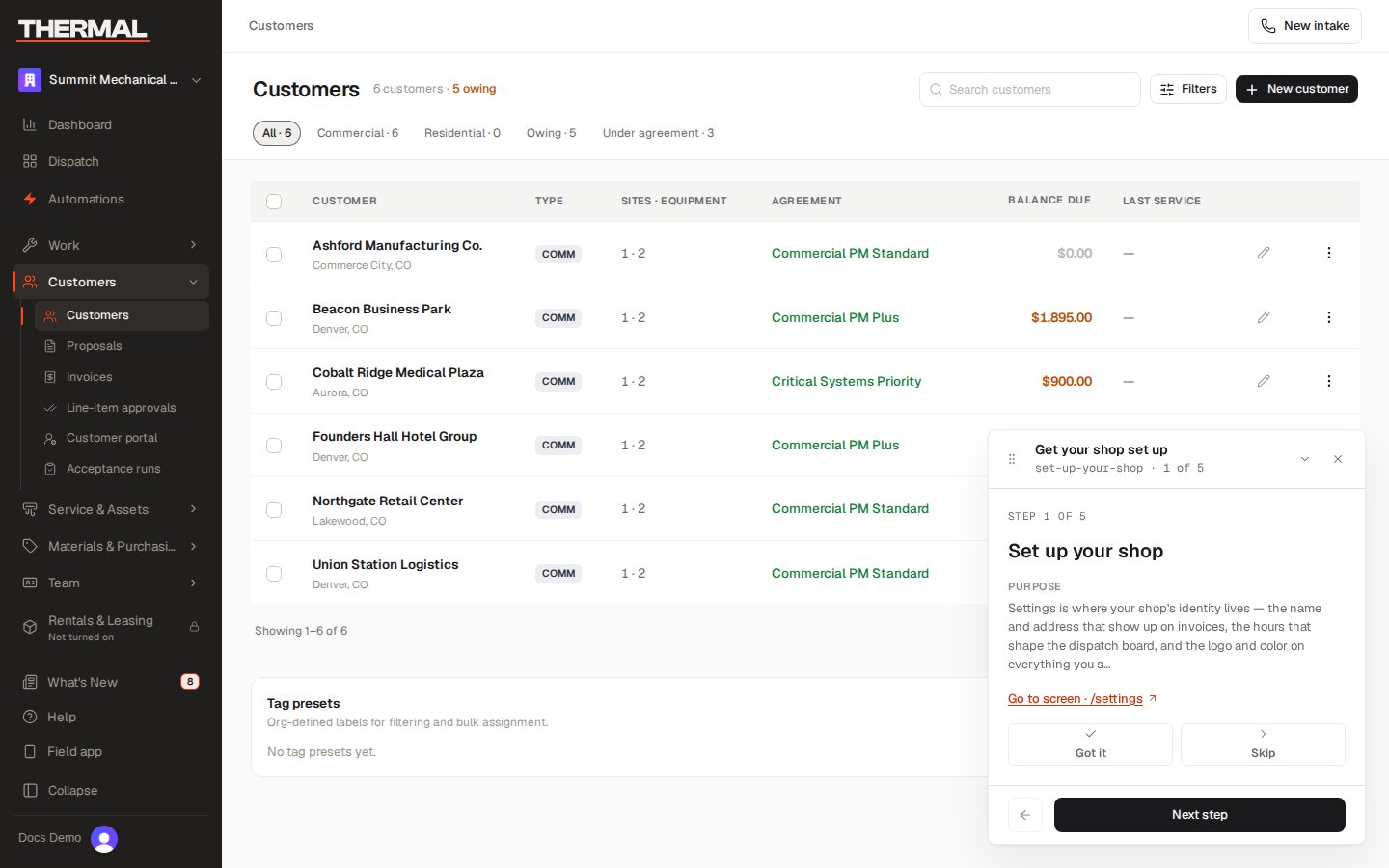
Create a customer
Choose New Customer and fill in:
- Customer Name — the only required field.
- Customer Type — Residential or Commercial.
- Pricing Tier — Standard, Member, or Commercial. This is the tier everything this customer buys is priced from (see Set your pricing and business rules).
- Phone / Email / Notes — optional.
You can add the customer's first service site (label, address) right on this form. A customer needs at least one site before you can log equipment or a work order against them, so it's worth filling in now rather than coming back to it.
The customer record
Open any customer to see seven tabs:
- Overview — a quick look at their equipment and recent work orders.
- Sites — every service site on the account, with add/edit/archive. A single customer can have any number of sites (a landlord with several rental properties, a business with multiple locations).
- Equipment — every unit at each site, with Add unit and Print labels actions — see Install and label customer equipment.
- Work orders — recent jobs, with a link to the full filtered list.
- Agreements — every service agreement on this account, not just the active one.
- Invoices — every invoice, plus a tool to consolidate any completed, not-yet-billed work orders onto one invoice.
- Documents — COIs, W-9s, and signed contracts, when your shop has file storage configured.
A persistent sidebar shows a billing summary (balance due, lifetime value, overdue count) and the current service agreement, visible from every tab. The billing summary's Record payment link is a placeholder for now — to actually record a payment, do it from the invoice itself (see Send and collect an invoice).
Edit a customer
Edit on the customer record changes name, type, pricing tier, payment terms (an override for just this customer — leave blank to use the org default), phone, email, and notes. Sites, documents, and portal access are managed from their own tabs, not this form.
Invite a customer to the portal
If your shop has the customer portal enabled and the customer has an email on file, the actions menu on their record has an Invite to portal option, giving them their own login to see agreements, invoices, and documents.
Reference
- Who can manage customers — Owners, Office users, and Dispatchers. Technicians work from the field app instead. See Roles & permissions.