
Send and collect an invoice
To change a bill with no payment, Void it, bill again, then Send the new draft. Send again emails the same unchanged bill. Sent doesn't prove the email went out.
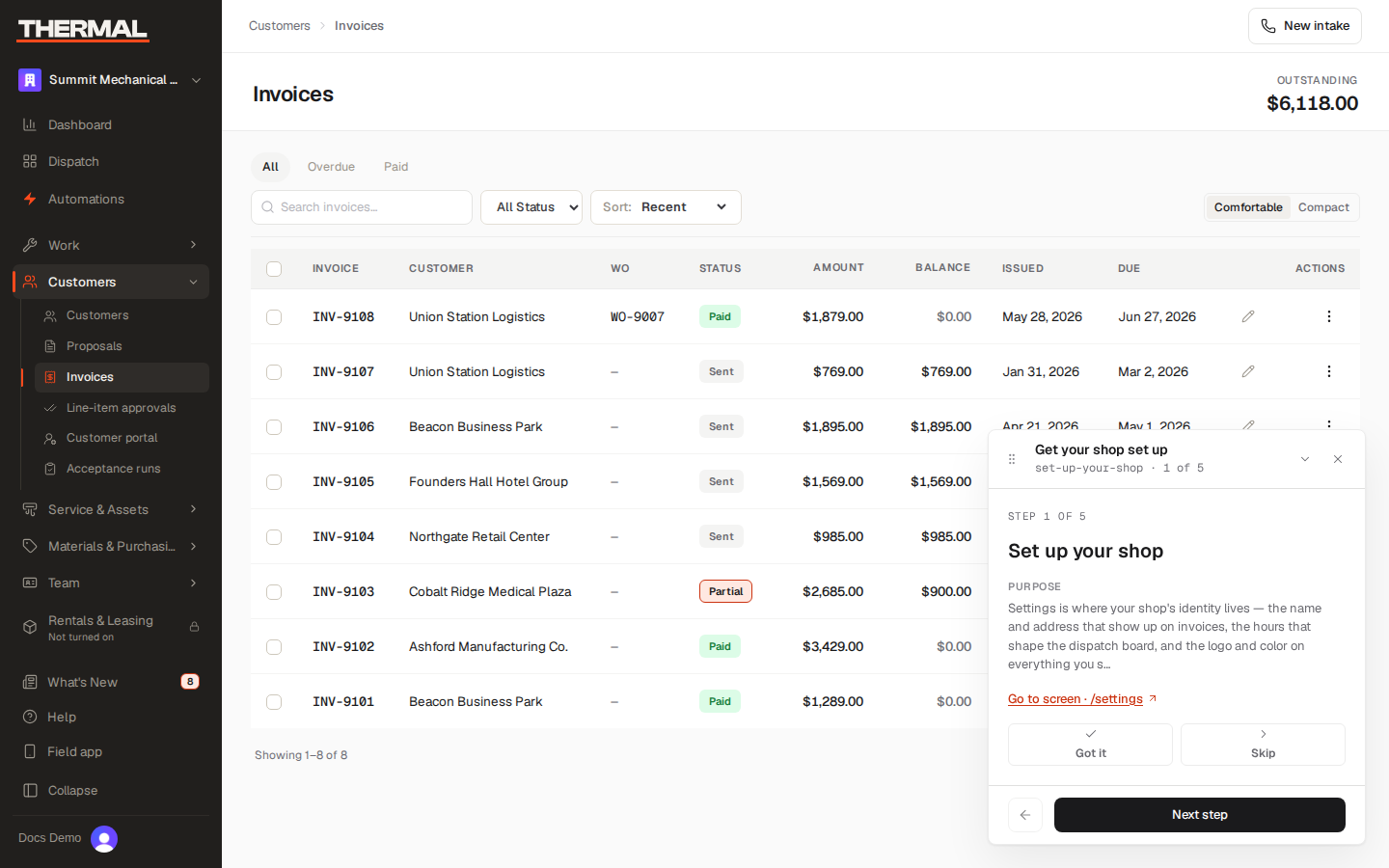
Invoices is where a bill goes from draft to paid. A finished job still starts its invoice from the job (see Bill a completed job). A fee, deposit, or other charge with no job starts from New invoice on this list (see New invoice). This guide covers what happens to an invoice once it exists: reviewing it, sending it, and collecting the payment.
Invoice statuses
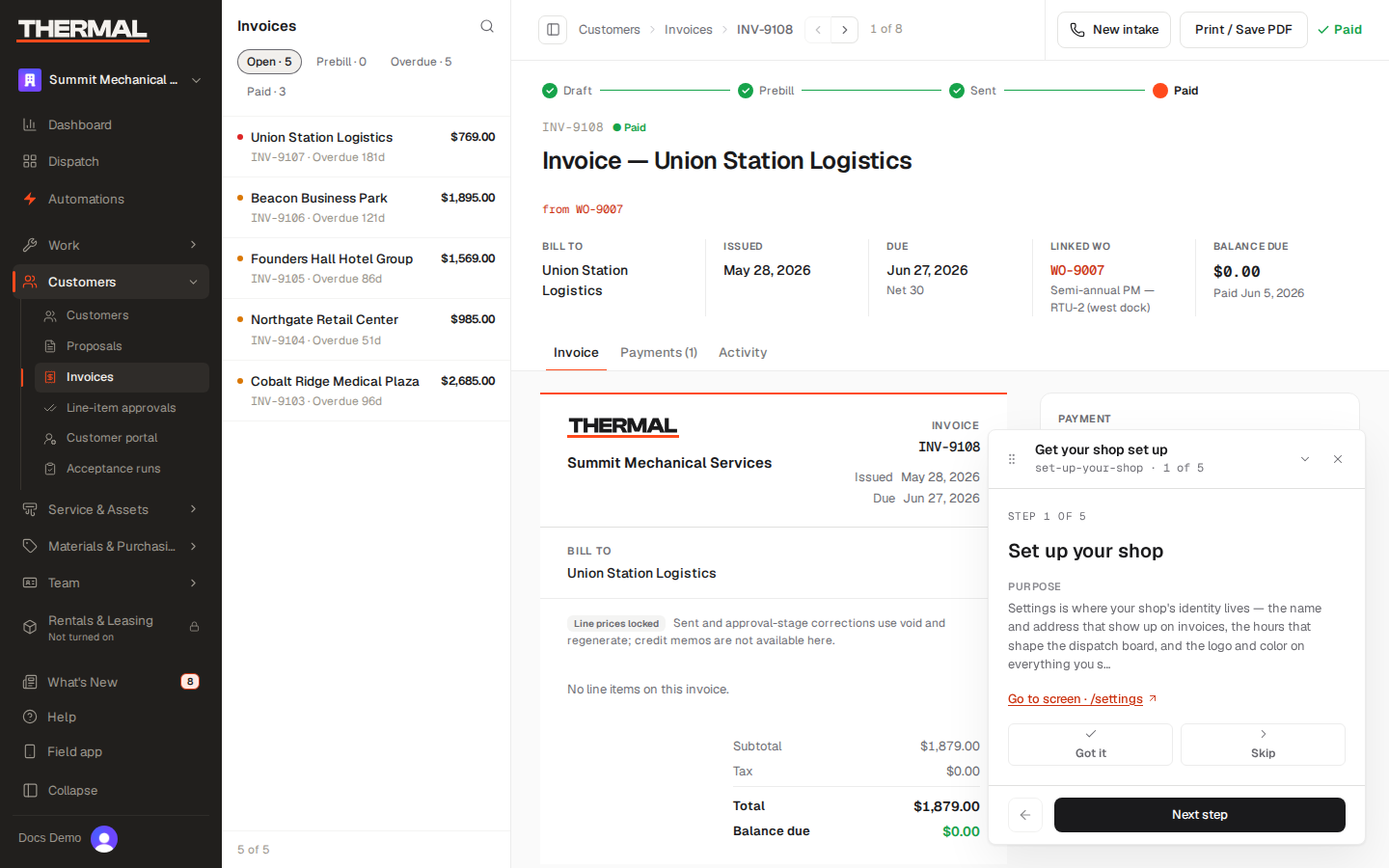
An invoice moves through a fixed set of statuses: Draft → (Prebill, if your company requires it) → Sent → Paid, with Partial for a bill that's been paid down but not in full, and Void for one that's been canceled. The detail page shows this as a status stepper at the top of the record.
Correct a draft before it goes out
While an invoice is still Draft, Owners and Office users (not Dispatchers) can:
- Adjust a line's price — enter a signed dollar amount and a reason. The reason is required and is kept on the record.
- Add an ad-hoc line — a labor, part, material, fee, lease, or discount line that wasn't on the original job.
A line covered under warranty shows (Warranty Covered) and, while prices can still be edited, a Warranty · $0 locked badge. Agreement labor shows (Agreement Labor Covered), agreement parts (Agreement Parts Covered), and goodwill (Goodwill). Those three show Covered · locked. All four stay at $0 and cannot be price-adjusted. A chargeable line that only carries an agreement discount can still be adjusted. Coverage is set on the job with Set coverage.
Once an invoice moves past Draft (Sent, Prebill, Partial, or Paid), the line items lock. To clear a Sent invoice that has no payment on it, choose Void. The confirm says this clears the balance. Then bill again from the job, or from New invoice.
On a Sent, Partial, or Paid invoice, the record shows Credit memos to anyone who can open it. Owners and Office users see the controls on that card. Dispatchers see the card and the credits already on it, and do not see the controls. Issue credit needs a Reason for credit. Leave the amount blank to credit the whole invoice, type a dollar amount, or select lines and leave the amount blank. Issuing that credit does not change the balance still owed on this invoice. Send credit note emails it. Before the note is sent, and before any of the credit is used, Delete credit removes it — a reason is required.
Create correction invoice opens New correction invoice. Add a negative line on that draft, then choose Release credit memo. Release is refused until the draft totals less than zero. A correction draft does not offer Send or Submit for approval.
Lock state
A Draft, Sent, Partial, or Paid invoice shows a Lock state card beside the record. Prebill and Void do not.
- Draft — editable — amounts can still be edited.
- Sent — locked — a sent invoice with no payment and no live accounting export. Amounts are fixed.
- Exported to accounting — a sent invoice that has a live accounting mapping, and no payment applied. Amounts are fixed.
- Paid — locked — any Partial or Paid invoice, or any invoice with a payment applied. This wins over an accounting export. Amounts are fixed.
When the amounts are fixed, the card says to use a credit memo, or void and regenerate, to change them.
On the invoices list, Exported to accounting is Yes or No. Yes means the invoice has a live accounting mapping. A draft stays Draft — editable even if a mapping exists. Once a payment is applied, the card reads Paid — locked even when the invoice was exported.
Download a customer statement
On the Invoices list, Statements opens the customers who still owe money on a sent or partly paid invoice. Each row shows the open balance, the aging bucket of the oldest open invoice, and Last statement (Never until one has been downloaded). Select the rows you want and choose Download statements. That saves one PDF, with a statement per customer. Last statement updates to that date.
For one customer, open the customer record and choose Download statement from the actions menu. The PDF lists Open invoices, Credits when there are any, and an Aging summary. An invoice billed to a property manager appears on the manager's statement, with the service customer named, and not on the service customer's statement.
Filter the list with the age chips (31+ days, 61+ days, Over 90 days) and the balance chips ($100+, $500+, $1,000+, $5,000+). Owners, Office users, and Dispatchers who can open customers can download statements.
Tax and due date
Tax and the due date are calculated automatically when the invoice is generated — you don't set them by hand on the invoice itself:
- Tax is computed from the org's sales tax rate (
Settings → This company → Invoicing), overridable per branch. See Set your pricing and business rules. Adjusting a line item's price afterward changes the subtotal and total but does not recompute tax — the original tax amount is preserved. - Due date is the invoice's issue date plus the company's payment-terms days, resolved in order from the service agreement, then the customer record, then the org default. The default is 30 days (Settings reference).
- GST/HST registration number is blank until someone saves one under Settings → This company → Invoicing, in Credit notes. When it is saved, the invoice shows GST/HST registration number: and that number. With the field blank, that line is not on the invoice.
If your company requires prebill approval
Some companies require an office or owner review before a bill goes to a customer. If yours does, a draft invoice shows Submit for approval before it can be released or emailed. Submitting moves the invoice to Prebill and adds it to Review (filter Prebill), also linked from Line-item approvals as Prebill queue. An approver there uses Approve and send to send it on to the customer, or rejects it back to Draft with a correction note.
On the invoice itself, a prebill waiting on that review shows Awaiting approval on the title line, unless a more urgent chip already holds that spot: Removed in QuickBooks, Payment disputed, On hold, or Overdue. An owner or office manager uses Approve for sending there. That is the same approval as Approve and send: the invoice becomes Sent. A dispatcher does not see Approve for sending. Approving shows Approved for sending. If that same approval was already recorded, it shows Already reviewed. If someone already decided the other way, it shows This prebill review was already decided differently. Reload for the latest state.
Who approved or rejected — and when — shows on the invoice Activity feed as Approved by … / Rejected by …, and on the invoice Approval tab as the decision line. If no named event is on file yet, the tab falls back to the reviewer stored on the approval queue.
Whether this step is required at all — and above what dollar amount — is an
org-wide setting (invoicing.prebillPolicy,
Settings reference); most
companies leave it optional.
Park a draft before it goes out
On a Draft or Prebill invoice, Put on hold asks for a Reason. The dialog is Put invoice on hold. It says the invoice can't be sent, approved, or collected until the hold is released. Choose Put on hold. The page says Invoice on hold. The title line shows On hold, and the ink button becomes Release hold.
A reason is required. An empty one is refused: "Enter a reason for the hold." The hold card names the reason and who put it on hold. Release hold says Hold released and leaves the status as it was: a draft stays a draft, and a prebill stays a prebill. A sent, partial, paid, or void invoice cannot be put on hold.
While the hold is on, Send is not offered. Approving or collecting it is refused until you release the hold. On the Invoices list, On hold shows the parked invoices, and each of those rows has an On hold badge. If a bulk Send includes one, nothing in that selection is emailed. The refusal is: "This invoice is on hold and cannot be sent, approved or settled until the hold is released."
Send the invoice
On a draft invoice that is not on hold, Send opens Send invoice so you can check its billing recipients before emailing it. The draft is released to Sent only after any required approval. Mark as sent releases the invoice without emailing the customer; use it when you delivered the bill another way. Its confirmation and result both say no email was sent.
On the customer's Invoices tab, an owner or office manager can turn on Require a PO number on invoices under Customer PO. It starts off. When it is on for the customer who pays, the invoice is not sent until one of its jobs has a PO number. Sending without one is refused: This customer requires a PO number. Add it to the job before sending.
Send again is on a Sent, Partial, or Paid invoice that is not a credit memo. It opens Send invoice again, emails the same bill, and leaves the status, lines and payments alone. Send reminder is separate: it nudges an unpaid balance. Internal fleet work is not emailed.
Send and Send again still try to email when automatic customer notifications or the Invoice sent switch are off. They honour recorded customer stops, bounced addresses and provider suppression. An address being shown in the sheet does not promise that it will be emailed.
Check or correct the recipients
The sheet shows a Send to field for each billing recipient. Correct an address there or clear it to leave that recipient out. Also send to adds another address for this send only. If no billing email is on file, add one before sending.
An edit does not update the contact automatically. Tick Also update the contact to save a corrected address. Tick Also add as a billing contact to save a new address; when doing both, the checkbox says Also update the contact and add the new billing contact. The address on the invoice itself does not change. Check the addresses, then choose Send or Send again in the sheet. The result names each address and its recorded outcome.
Send several invoices
On the Invoices list, select several invoices and choose Send. The confirmation asks to email each invoice to its billing recipients, release drafts after any required approval, and honour customer stops. A draft that does not need approval is released and emailed; a Sent, Partial, or Paid invoice is emailed again without changing its status.
Void invoices, internal fleet work, credit-memo drafts, invoices awaiting prebill approval, drafts that still require approval, invoices whose paying customer requires a PO number the job does not have, and vendor-portal invoices awaiting review are skipped. A skipped PO reads Not sent: this customer requires a PO number. Add it to the job first. The result counts invoices whose emails were accepted, queued, unknown, failed or not emailed, and those skipped. An accepted email is not proof of delivery.
Did the invoice go out?
A status of Sent means the invoice was released. It does not prove an email reached the customer, including when someone used Mark as sent. Open Send history on the invoice to see each send, its time, its recipients and any corrected address. Each recipient has its own outcome:
- Accepted by email provider — the provider accepted the email. This does not prove it reached the customer's inbox.
- Queued — the send is waiting to finish.
- Not emailed — the address was held back; the reason is shown.
- Failed — the send failed.
- Outcome unknown — Thermal could not confirm the provider's outcome. Check with the customer before sending again.
If there is no recorded send, the history does not invent an outcome. Ask the assistant from the invoice page for the recorded outcome and reason; it can only tell you what the record holds.
Email the same invoice again
Use Send again for another copy of a bill you are not changing. Review its billing addresses in the sheet, then send it. The status and the money stay put. Use it when the first email was missed or a billing address was added later, after checking any unknown outcome.
Change a sent invoice
A Sent invoice's line items are locked. To correct one that has no payment on it, choose Void, then bill again from the job, or from New invoice, and choose Send on the new draft. To adjust a sent invoice that has a payment or is exported, issue a credit memo instead (see above), then Send credit note. To nudge the customer about an unpaid balance without sending the invoice again, use Send reminder.
Send a reminder
Before you start: the Invoice reminder notice is off until you turn it on under Settings → Notifications, and email or text delivery has to be connected for your company. A reminder does not go out just because the button is there.
Send reminder shows on a Sent or Partial invoice that still has a balance and is not internal fleet work. If it goes out, the page says Reminder sent. If it does not, the page says Not sent: and the reason — notifications are turned off, invoice reminders are turned off in settings, there is no billing contact with an email or phone on file, email and text delivery are not connected, or delivery failed. That reminder is not recorded as sent. A second click within five minutes says a reminder was just sent.
Send or download customer statements
Open Statements from the Invoices list to review customers with open balances. Select customers and choose Download statements for one combined PDF, or Email statements to review billing recipients and send each customer its own PDF. Last statement records PDF generation; Last email records the latest email attempt. See the Statements reference for aging and minimum-balance filters, credits and access limits.
Record a payment
Open a Sent or Partial invoice and use Record payment:
- Amount — up to the remaining balance due. Thermal rejects an amount over what's owed.
- Method — Cash, Check, Card, ACH / bank transfer, or Other. A company billing in Canadian dollars sees Cash, Cheque, Interac e-Transfer, Card, Bank transfer (EFT), or Other.
- Reference — optional; a check number, confirmation code, or processor
id. Thermal stores it on the payment row (
payments.external_ref), not on the invoice.
The invoice's Payments table lists each recorded payment on its own row
(date, method, reference, amount). The Reference cell is that payment's
external_ref exactly — a Stripe payment-intent id, a check number, or an
em dash (—) when nothing was stored. Empty references do not claim live
or test mode. This is not the invoice's QBO sync id (invoices.external_ref);
that lives on the invoice itself and is used when voiding a synced draft.
Recording a payment that covers the full balance moves the invoice to Paid; a partial amount moves it to Partial, and you can record additional payments against it until the balance reaches zero.
If your company has card payments connected, a customer can also pay online through a link on the invoice — that payment posts back to the same balance automatically.
Reference
- Who can send invoices and record payments — Owners, Office users, and Dispatchers can reach Invoices; only Owners and Office users can adjust line prices or add ad-hoc lines. Technicians can't reach this screen. See Roles & permissions.
- Invoice statuses — the exact status enum is in Status & domain values.